6 TV, Printer, and Password Tricks You'll Wish You Knew
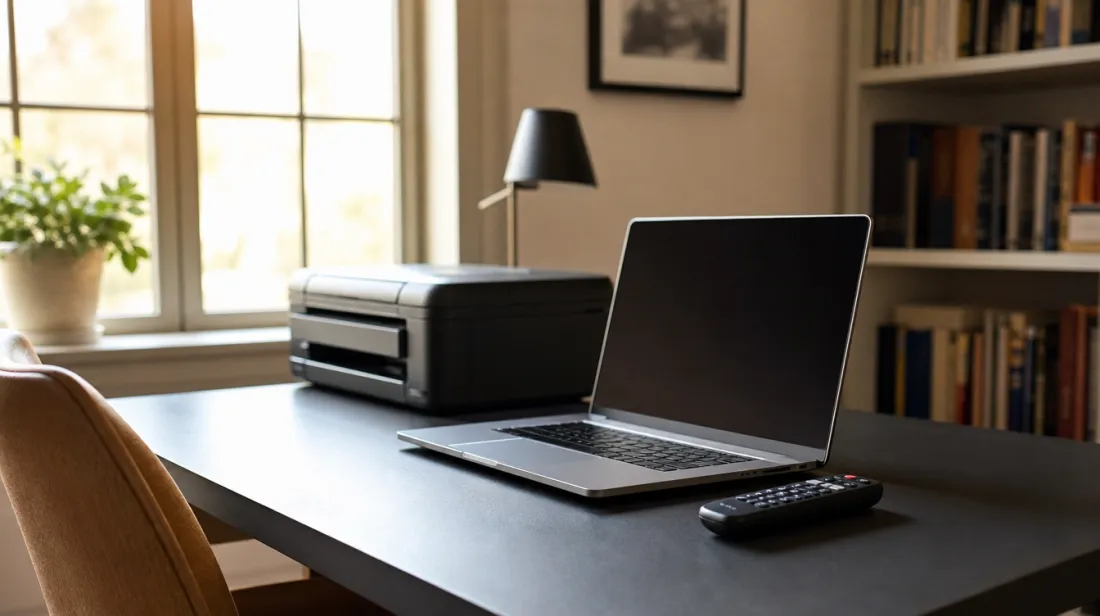
Some of the most annoying tech problems in your house have nothing to do with anything being broken. Your TV, your printer, and your passwords are usually working exactly as designed, just not set up in a way that helps you.
Here are six small fixes that solve problems most people just put up with.
1. Turn Off Your TV's Store Demo Mode
Many TVs ship set to a mode called Store Demo or Retail Mode, designed to look bright and flashy under store lighting. If your TV came from the store already out of the box, or you never went through setup carefully, this can still be turned on.
Look in your TV's settings menu, usually under General or Picture, for an option called Store Mode, Demo Mode, or Retail Mode, and switch it to Home Mode or Home Use. This alone fixes an oversaturated, overly bright picture and can lower how much power the TV uses.
2. Clean the Printer Head Once a Month
A streaky or faded printout usually isn't a low ink problem. It's dried ink clogging the tiny nozzles in the print head, which happens naturally when a printer sits unused for a while.
Most printers have a cleaning cycle built into their settings, either on the printer's own screen or through the printer software on your computer, usually under Maintenance or Printer Utilities. Running it once a month, even when you're not printing much, keeps the nozzles clear.
Tip: Printing one test page a week, even a blank document, keeps ink flowing through the nozzles and prevents most clogs before they start.
3. Use a Passphrase Instead of a Password
A short password with a symbol swapped in, like Summer2024!, is easier for a computer to crack than most people realize. A longer passphrase made of a few unrelated words is actually stronger and easier for you to remember.
Something like "purple-taxi-window-42" is harder to guess than "P@ssw0rd1" and far easier to type without forgetting it. Length matters more than complexity.
4. Get a Password Manager
Reusing the same password across multiple accounts means one leaked site can expose everything else you've logged into with that password. A password manager creates and remembers a different strong password for every account, so you only need to remember one.
Most web browsers now include a basic password manager built in, or you can use a dedicated app. Either way, it's the single biggest security upgrade most people can make in one afternoon.
5. Turn On Two-Factor Authentication
Two-factor authentication means that even if someone steals your password, they still can't get into your account without a code sent to your phone. It sounds like extra hassle, but it usually only asks for that code the first time you log in on a new device.
Look for this setting under Security or Login Settings in your email, banking, and social media accounts. Turn it on wherever it's offered.
6. Check What's Actually Printing Before You Hit Print
Web pages often print with ads, sidebars, and extra pages you didn't want, wasting ink and paper. Most browsers have a Print Preview screen that shows exactly what will come out before you commit.
Use the Print Preview to select just the pages you need, and look for a "reader view" or "simplified view" option in your browser, which strips out ads and extra clutter before printing.
Tip: Many browsers also let you save a page as a PDF instead of printing it, which is worth doing if you just need to keep a copy, not a paper one.
Turn On Your TV's Energy Saving Mode Too
While you're in the picture settings fixing Store Mode, look for a separate setting called Energy Saving or Eco Mode, usually in the same General or Picture menu. This adjusts the backlight automatically based on the room's lighting instead of running at full brightness all the time.
It's a small change, but on a TV that runs for hours every evening, it can make a real difference on your electric bill over a year, and most people can't tell the difference in picture quality.
Write Your Passwords Down the Right Way if You Don't Use an App
If a password manager feels like too much to set up right now, writing passwords down isn't the security disaster it's sometimes made out to be, as long as the list is kept somewhere private, like a locked drawer, not a sticky note on the monitor.
A written list at home is actually safer from most online scammers than reusing the same password everywhere, since it can't be stolen in a data breach the way a digital password saved carelessly can.
The Bottom Line
None of these fixes require new equipment or technical skill. A few settings changes on machines you already own, plus a couple of better habits around your passwords, solve problems most people have simply learned to live with.
Pick one this week and see the difference before moving to the next.